Lab 3: Fun with Images --- or Photoshop is not Magic!

In this lab you will incorporate image processing into Python programming

  1. Cut and paste the files image.py and imtest.py into your directory. Make sure to save the first file using the same file name. Don't worry about the code in image.py, it will only imported into your code and not modified. If you are working from a non-lab computer you may also need to download and install Python Imaging Library
  2. The image.py library contains the following functions with indicated uses:
              Function                 Usage
    
            FileImage           myImage = FileImage("pic.jpg")  Reads in an image
    	show                myImage.show("title")  Displays the image in a window with given title
            copy                newImage = myImage.copy()   Creates a copy     
            redraw              myImage.redraw()   Redraws image after changes have been made
            EmptyImage          eImage = EmptyImage(width,height)  Creates a color image of indicated size
                                                                   and initializes color to (0,0,0)
            copyGray            grayImage = myImage.copyGray()  Creates a grayscale image from a color image
            save                newImage.save("newimage.jpg")  Saves image in the indicated format
        
            getPixel2D          (r,g,b) = myImage.getPixel(x,y)  Returns (r,g,b) for color image
                                intensity = grayImage.getPixel2D(x,y)  Returns integer grayscale between 0 and 255 
            setPixel2D          myImage.setPixel2D(x,y,(r,g,b))  Sets color at (x,y) to (r,g,b)
                                grayImage.setPixel2D(x,y,intensity)  Sets gray level at (x,y) to integer intensity
            getHeight           height = myImage.getHeight()
            getWidth            width = myImage.getWidth()
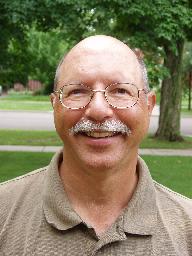
    
  3. Cut and paste the image jack.jpg into your directory. Read through the file imtest.py and try to understand what it will do, then run it entering jack.jpg when prompted for an image name and see the result.
  4. Rewrite the program so that the green component is removed and the red and blue components are retained.
  5. Write a program that reads in an image and creates a new image that has flipped the original horizontally (i.e. y coordinates remain the same and x coordinates are flipped).
  6. Repeat, but now flip the image vertically.
  7. Cut and paste the images jackdark.jpg, jackfade.jpg, jackbright.jpg into your directory. These are grayscale images that have "bad contrast". The problem is that in each case, the range of grayscale values is compressed into an interval much smaller than the full range [0,255]. The contrast can be improved by doing the following:
  8. Write a Python program that reads in a grayscale image and performs the above steps to enhance the contrast. Try it on the three given "bad images".
Your homework assignment is to finish this lab and turn in the results by Friday.